This is default featured slide 1 title

Go to Blogger edit html and find these sentences.Now replace these sentences with your own descriptions.

This is default featured slide 2 title

Go to Blogger edit html and find these sentences.Now replace these sentences with your own descriptions.

This is default featured slide 3 title

Go to Blogger edit html and find these sentences.Now replace these sentences with your own descriptions.

This is default featured slide 4 title

Go to Blogger edit html and find these sentences.Now replace these sentences with your own descriptions.

This is default featured slide 5 title

Go to Blogger edit html and find these sentences.Now replace these sentences with your own descriptions.

Don`t Learn to HACK - Hack to LEARN.All about Ethical Hacking, Penetration Testing & Computer Security

Showing posts with label wireless. Show all posts

Monday, September 10, 2012

Make Your Laptop As Wi-Fi Router To Share Internet For PC Or Phone

Step 1.Connect your PC to internet, Download this software Connectify
Step 2. Install it and reboot your PC then on your PC wi-fi
Step 3.Now open the Software , for free version click on try
Step 4.Put a name in Wi-Fi name option
Step 5.Put a password
Step 6.Select your PC internet , in Internet to share option .


Step 7.Select you laptop wi-fi in Share Over option
Step 8.Select the Sharing  mode of password , select WPA2

Step 9.Now click on Start Hotspot
Now enjoy you wi-fi router or hotspot.


Friday, September 7, 2012

WiFi Toolkit 2 (Last Update)


An important part of communication of most modern companies have wireless broadband data network. Networking allows you to configure local area networks within buildings and to establish radio links with remote offices for dozens of kilometers. They help to organize the urban strongholds networks, providing broadband Internet access for private companies and government agencies. In addition to these advantages, wireless networks developed a number of software and hardware control over traffic and safety management. To date, remove all questions of administration, now they are just as wired can be transparent for technicians and administrators.
The performance of radio are influenced by many factors, so to control the wireless network and manage more complex than wired. Until recently it was not possible to fully, with the help of staff resources to monitor data streams and to monitor the levels of incoming radio signals, so they had to face some difficulties when trying to determine the cause of an event in the network. Using advanced software and hardware monitoring and traffic analysis of wireless networks, these issues are successfully solved.


Contents: Aircrack-NG, Essential NetTools, inSSIDer, NetSetMan, WildPackets OmniPeek, Sidejacking, SMAC, Vistumbler, WiFi Hopper, Wireless Network Ignition, Wireshark 

Download 


Enjoy

Friday, August 24, 2012

Wireless Hacking Live - FBI version ISO (Last Update)


Wireless Hacking Live - FBI version ISO


Live Cd For Wireless Hacking, Also Used By The FBI


This version is for all systems except systems with the Intel B/G wireless cards (IPW2200).
- Live CD with all the tools you need to hack a WLAN / wireless Access point - Linux Live-CD - OS runs from CD - 635 mb - .iso
- also used by the FBI.

WEP Hacking - The Next Generation

WEP is an encryption scheme, based on the RC-4 cipher, that is available on all 802.11a, b and g wireless products. WEP uses a set of bits called a key to scramble information in the data frames as it leaves the access point or client adapter and the scrambled message is then decrypted by the receiver.

Both sides must have the same WEP key, which is usually a total of 64 or 128 bits long. A semi-random 24 bit number called an Initialization Vector (IV), is part of the key, so a 64 bit WEP key actually contains only 40 bits of “strong” encryption while a 128 bit key has 104. The IV is placed in encrypted frame’s header, and is transmitted in plain text.

Traditionally, crac*ing WEP keys has been a slow and boring process. An attacker would have to capture hundreds of thousands or millions of packetsa€”a process that could take hours or even days, depending on the volume of traffic passing over the wireless network. After enough packets were captured, a WEP crac*ing program such as Aircrac* would be used to find the WEP key.

Fast-forward to last summer, when the first of the latest generation of WEP cracking tools appeared. This current generation uses a combination of statistical techniques focused on unique IVs captured and brute-force dictionary attacks to break 128 bit WEP keys in minutes instead of hours. As Special Agent Bickers noted, “It doesn’t matter if you use 128 bit WEP keys, you are vulnerable!”

WEP is an encryption scheme, based on the RC-4 cipher, that is available on all 802.11a, b and g wireless products.
WEP uses a set of bits called a key to scramble information in the data frames as it leaves the access point or client adapter and the scrambled message is then decrypted by the receiver.

Both sides must have the same WEP key, which is usually a total of 64 or 128 bits long.
A semi-random 24 bit number called an Initialization Vector (IV), is part of the key, so a 64 bit WEP key actually contains only 40 bits of “strong” encryption while a 128 bit key has 104.
The IV is placed in encrypted frame’s header, and is transmitted in plain text.
Traditionally, cracking WEP keys has been a slow and boring process.
An attacker would have to capture hundreds of thousands or millions of packets a process that could take hours or even days, depending on the volume of traffic passing over the wireless network.
After enough packets were captured, a WEP cracking program such as Aircrack would be used to find the WEP key.
Fast-forward to last summer, when the first of the latest generation of WEP cracking tools appeared.
This current generation uses a combination of statistical techniques focused on unique IVs captured and brute-force dictionary attacks to break 128 bit WEP keys in minutes instead of hours.


Basic Directions:
1)Boot from cd
2)get the wep key
3)write it down
4)reboot into windows
5)connect using wep key.

Note: if you have problems burning the ISO, convert the ISO using Magic ISO to nrg image, before burning.


 Download Here


Wednesday, July 25, 2012

WiFi Cracker AIO | 122 Mb


Easiest way to crack wireless network keys.
WiFi Cracker AIO 2011


- AIRO PEEK NX
- COMM VIEW
- WFHOPPER
- AIR CRACK
- AIR SNORT
- WEP HACK
- HACKING WEP PLUGIN
- WEP KEY PASSWORD SPY
- WEP DECODER
- etc


Download Here :


  1. Via Jumbofile - 122 Mb
  2. Via Grupload - 122 Mb

Tuesday, July 24, 2012

Security of your Wi-Fi network is as much important as of your computer. All your personal information and files on your wireless network can be seen by people who are connected to your Wi-Fi network signal. This can lead to identity theft and other malicious acts.
A network security key or passphrase can help protect your wireless network from this type of unauthorized access. It’s easy to set up a secured Wi-Fi connection in Windows 7, the Set Up a Network wizard will guide you through setting up a security key.
If you already have a configured device, then go to Network and sharing center, in the left pane, click on Manage Wireless networks and then select the network for which you want to configure the security key. Click on properties and then click on Security tab and change the security key.

I don’t recommend using Wired Equivalent Privacy (WEP) as your wireless security method. Wi Fi Protected Access (WPA or WPA2) is more secure.
Difference between WEP and WPA/WPA2 encryption methods for wireless networks

Wi Fi Protected Access (WPA and WPA2)

WPA and WPA2 require users to provide a security key to connect. Once the key has been validated, all data sent between the computer or device and the access point is encrypted.There are two types of WPA authentication: WPA and WPA2. WPA2 is the most secure. In WPA-Personal and WPA2-Personal, each user is given the same passphrase. This is the recommended mode for home networks. WPA-Enterprise and WPA2-Enterprise are designed to be used with an 802.1x authentication server that distributes different keys to each user. This mode is primarily used in work networks.

Wired Equivalent Privacy (WEP)

WEP is an older network security method that’s still available to support older devices, but it’s no longer recommended. When you enable WEP, you set up a network security key. This key encrypts the information that one computer sends to another computer across your network. However, WEP security is relatively easy to crack.
There are two kinds of WEP: open system authentication and shared key authentication.
Neither is very secure, but shared key authentication is the least secure of the two. But a hacker can easily hacks it using some Wireless network analysis tool.
For this reason, Windows 7 doesn’t support automatically setting up a network using WEP shared key authentication.
If, despite these warnings, you still want to use WEP shared key authentication, you can do so by following these steps:
To manually create a network profile using WEP shared key authentication
  1. Click on Network icon in Notification area and click on open Network and Sharing Center.
  2. Click Set up a new connection or network.
  3. Click Manually connect to a wireless network, and then click Next. 28 Jul 11 12 11 16 PM 600x381 Type of Wireless Network Security keys and how to secure them in Windows 7
  4. On the Enter information for the wireless network you want to add page, under Security type, select WEP. 
  5. Complete the rest of the page, and then click Next.
  6. Click Change connection settings.
  7. Click the Security tab, and then, under Security type, click Shared. 
  8. Click OK, and then click Close.

Find out who is using your wireless network

Do you suspect that someone is wrongfully using your wireless network connection? Maybe your wireless connection is slow these days and you suspect that someone has hacked into it. Well, there are several free tools available which can help you detect who is using your connection illegally. I am covering two tools here, but if you know of any more, please do share below in the comments.
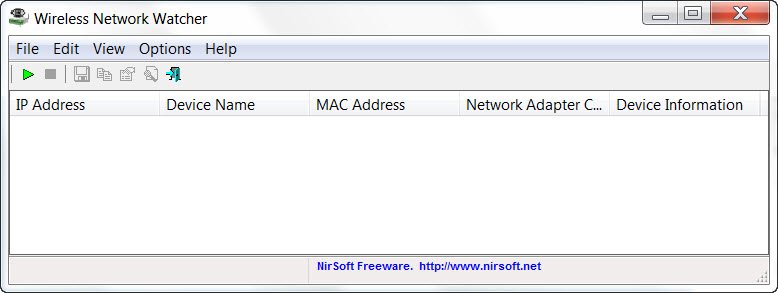
network watcher 400x150 How to find out who is using your wireless network
Wireless Network Watcher is the 3rd new tool released by Nirsoft, this month. It is a small utility that scans your wireless network and displays the list of all computers and devices that are currently connected to your network.
It will display the following information for each connection:
  1. IP address
  2. MAC address
  3. Manufacturer of the network card
  4. Computer name
  5. Device Name.
The tool also allows you to export the list of connected devices and save it as an html,xml, csv or a text file.
Another utility for sniffing if someone else is using your wireless network is Zamzom.

Zamzom Wireless Network Tool lets you see all  the users that are using your wireless network. There are two scan options but only the Fast Scan is available in the free version, but that should be good enough for most, I suppose. Once the scan is completed, it displays the IP address and MAC address.

Set up Wireless Network Connection In Windows 7

Wireless networks allow you to work independently – without the tension of plugging in long wires that not only look bad in the house, but also are a safety hazard. Since wireless signals travel in all directions and travel fast, you can use wireless network to work from your bedroom or from the porch of your home. This article explains how to set up wireless network connection in Windows 7.

Inventory Required To Set Up Wireless Network Connection

Since we are talking of a complete wireless network, we need the following items to set up wireless network connection:
  1. An operating system that supports wireless networking. Windows 7 is a good operating system that allows you to create wireless networks without any problems. If you intend to use Windows XP, make sure you have Service Pack 3. Similarly for Windows Vista, you will need Vista Service Pack 2
  2. A fast Internet connection: You can go for either a DSL or a cable broadband. In most cases, the cable or DSL router (see point 3 below) is provided by the ISP who also sets up Internet connection. Normally, the connection from wall jack (in case of DSL) and from hub (in case of cable) is wired to the router from where, wireless signals take over for communication.
  3. A wireless router: Since we need a wireless network, we will need a wireless router. Check to see if your ISP can give you one. If not, you can get wireless router from any computer market. Make sure you buy a reputed product for better results. Routers are available in different technologies. I suggest 802.11g or 802.11n for better connectivity and good signals. Routers using the mentioned technologies are more compatible with network adaptors of different companies. Make sure that you are buying a wireless router and not a wireless access points. The latter is used to expand existing wired networks and does not serve the purpose of wireless routers.
  4. Wireless Adaptors: Most computers now come with built-in wireless adaptors. They are usually towards the front of laptops and computers and carry a switch that you can turn on and off to enable and disable network connectivity. If your computer does not have one, you can buy wireless adaptors from a computer store. I suggest that you buy USB wireless adaptors as they are quick and easy to install. Also, you can use them with different computers unlike the card type adaptors that need to be installed on the motherboards. Also, when buying wireless network adaptors, make sure they match the network technology of the router you are using in the network. That is, if you are using 802.11n router, your network adaptors should also be 802.11n. This ensures better connectivity.
To check if your computer has wireless network adaptors, proceed with the following steps:
  1. Open Control Panel
  2. Double click Network And Sharing (available under Network and Internet if you are using Category view)
  3. In the left pane, click on Manage Network Adaptors
  4. If your computer has a wireless network adaptor, it will show you a network icon saying Wireless Network Connection.
Fig 1 How to know if Wireless Network Adaptor is present1 600x229 How To set up Wireless Network Connection In Windows 7
Figure 1
Setting Up Internet Connection
Most of the ISPs set up Internet connection when you take a new connection. If your ISP did not set up Internet for you, follow these steps (assumes your modem includes wireless router):
  1. Plug one end of the phone wire into the phone jack provided on the router’s back
  2. Plug the other end of phone wire into wall jack of phone connection. If you are using a splitter, connect this end of phone wire into the splitter socket that says DSL. You can then use another phone wire to connect the splitter to wall jack of phone
  3. Plug the router into electrical socket.
  4. Turn on your main computer that you will use to set up admin privileges.
  5. Open Control Panel. If it is not in the Icon view, switch to the Icon view.
  6. Click Network And Sharing Center
  7. Below View Your Active Networks, click Setup A New Connection or Network
  8. Double click Connect To Internet and follow the steps in the Wizard
Fig 2 Creating Internet Connection1 600x438 How To set up Wireless Network Connection In Windows 7
If your modem is different from wireless router, you will need to connect phone wire – one end into modem and another end into phone jack or splitter. You can then connect the modem to wireless router using a network cable. You can then follow the steps 4 to 7 mentioned above. It should look somewhat like the image below.Fig 3 Connect Wireless Router To Modem1 How To set up Wireless Network Connection In Windows 7
At this point, your main computer should be able to connect to the Internet. If it is not connecting to the Internet, the connections must be wrong. Check the Network and Sharing window in Control Panel to see if Windows 7 is able to detect the wireless network (see figure 1 above). If not, make sure the modem/router are properly connected and switched on.
Securing The Network
Assuming that the main computer is now able to connect to the Internet, we will go ahead and configure the network for security.
  1. Click the Network icon in Windows system tray
  2. Click Open Network And Sharing
  3. Click Setup A New Connection Or Network
  4. Double click Setup A New Network
  5. The wizard will walk you through a series of steps to configure your network
  6. If your router supports WPA2, the wizard will show it in the list under Security Level. Set the Security Type to AES. Type a password under Security Key and click Next
  7. Copy the security key to some safe place so that you can use it when setting up other computers in the network. You will also need it later when you wish to make changes to the network

Setting Up Other Computers On The Network

  1. Click the Network icon in the Windows System Tray
  2. Select your network (recognized by the name you provided in the wizard above)
  3. Windows will ask you for the password. Enter the password you saved in step 7 above.

Setting Up Sharing On The Network

You have to turn on sharing on all computers, including the ones having devices such as printers and scanners so that you can use them from any computer on the network. The following applies to each computer on the network
  1. Click the Network icon
  2. Click Open Network and Sharing Center
  3. Click Choose Homegroup and Sharing Options. A wizard will walk you through setting up sharing for files and devices attached to the computer.
Fig 4 Set up sharing in Windows 7 600x501 How To set up Wireless Network Connection In Windows 7
Note that you can share files by copying them into Public folder in Windows 7. The Public folder is available in C:\Users folder.
This explains how to set up wireless network connection in Windows 7. If you face any problems, we will be happy to assist. Just drop a note in the comments stating the problem and your version of Windows.